How to Manage Projects with GanttPRO: Updated List View


August 4, 2026 / Estimated reading time: 3 minutes

Every team has its own way of managing work. While some prefer planning projects on a Gantt chart, others need a simple list to review tasks, update statuses, or organize everything from a different perspective.
That’s why GanttPRO offers multiple project views including Gantt, Board, Calendar, and List, so everyone can work in the way that fits them best.
We continue improving every way you can manage tasks and projects in GanttPRO. After redesigning Board view last year, we’re bringing the same modern experience to List view. We’ve made it faster, cleaner, and more flexible for supporting different workflows and everyday task management.
View your work the way you prefer with List formats
The redesigned table component makes working in List view faster and more intuitive.
The interface has been refreshed with updated visuals, clearer organization, and improved usability.
The new component has been updated everywhere throughout the application in:
- List view within a project.
- My tasks tab.
- List tab in the Portfolio view.
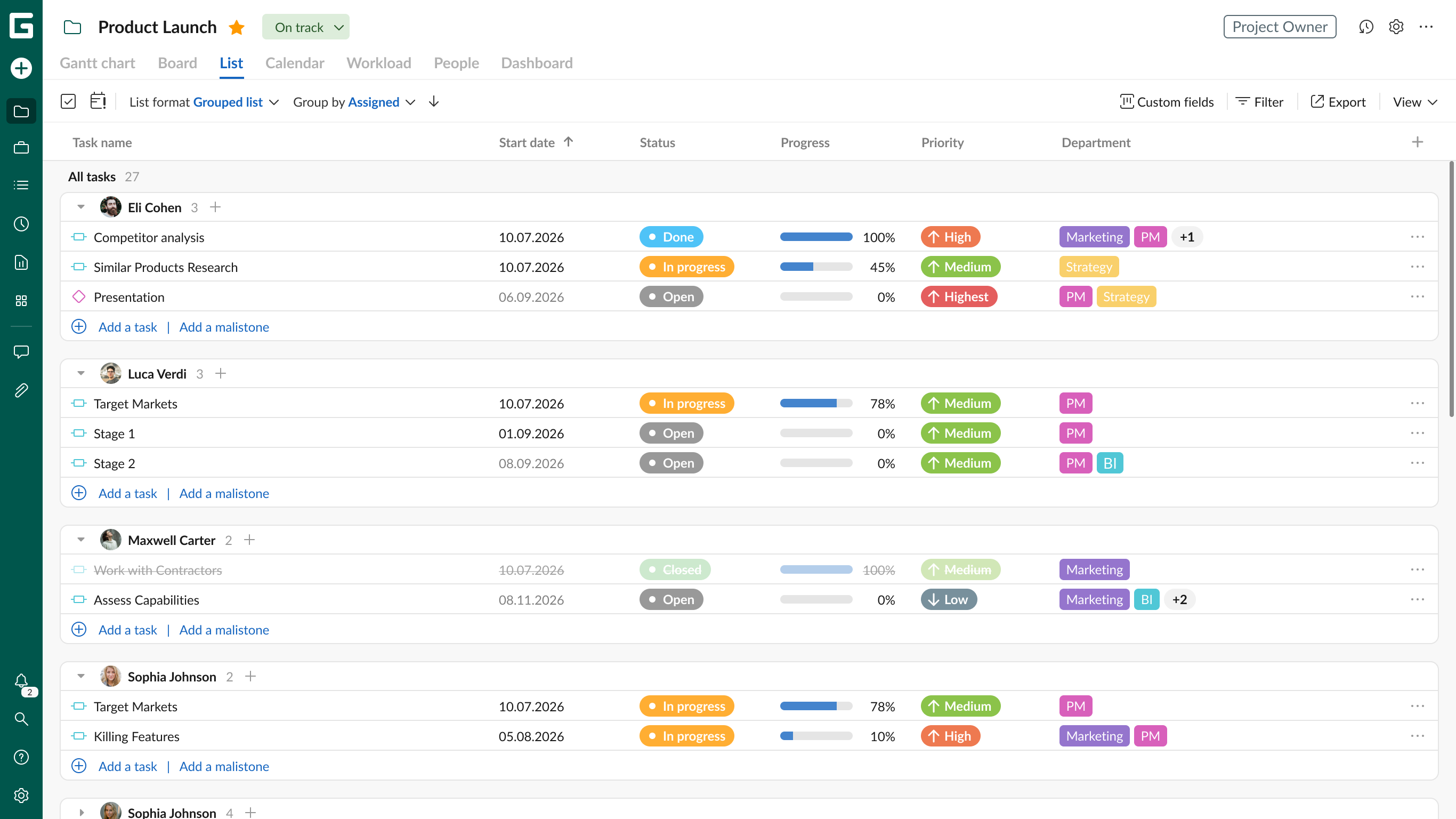
The updated List view lets you instantly switch between multiple formats, so you can review tasks and milestones the way that makes the most sense for your project.
Find the menu in the upper left corner. You can switch between List, WBS, and Grouped list:
- List shows a simple sequential order (1, 2, 3, etc.) of single tasks or subtasks without nesting.
- WBS organizes tasks in the same manner as they are shown in the Gantt chart view but without a diagram. It displays your project’s hierarchy of tasks, subtasks, and milestones. If you change a hierarchy here, these changes will be automatically applied to the project’s structure.
- Grouped list is a default format. You can group your tasks by standard (Status, Priority, Assigned) and custom (List, Color, Multiselect, People, Labels) fields.
Customize every List format with fields to match your workflow
In each list format, you can work with standard and custom fields.
Arrange them with drag-and-drop so the information most important to you or your team is always front and center. Your field and task order are saved so there is no need to set them up each time.
This allows you to tailor each List format to different workflows and project scenarios.
When you need to share project data, you can export either all fields or only the ones you’ve added, depending on your audience.
Find the corresponding button in the upper right corner.
Find what matters faster with sorting
In List and Grouped list formats, you can also sort values in each field in ascending and descending orders.
Your sorting preferences are saved for each format, so you don’t have to reorganize the view every time you return.
Try redesigned List view
The redesigned List view gives you a faster, cleaner, and more flexible way to organize your work.
Switch between Gantt, Board, List, and Calendar views at any time without changing your project data. Each view gives you a different perspective on the same work.
Use List when you want a straightforward, spreadsheet-like view of your tasks without switching to a Gantt chart or Board.
If you have any questions, contact us via live chat, and we’ll be happy to help.