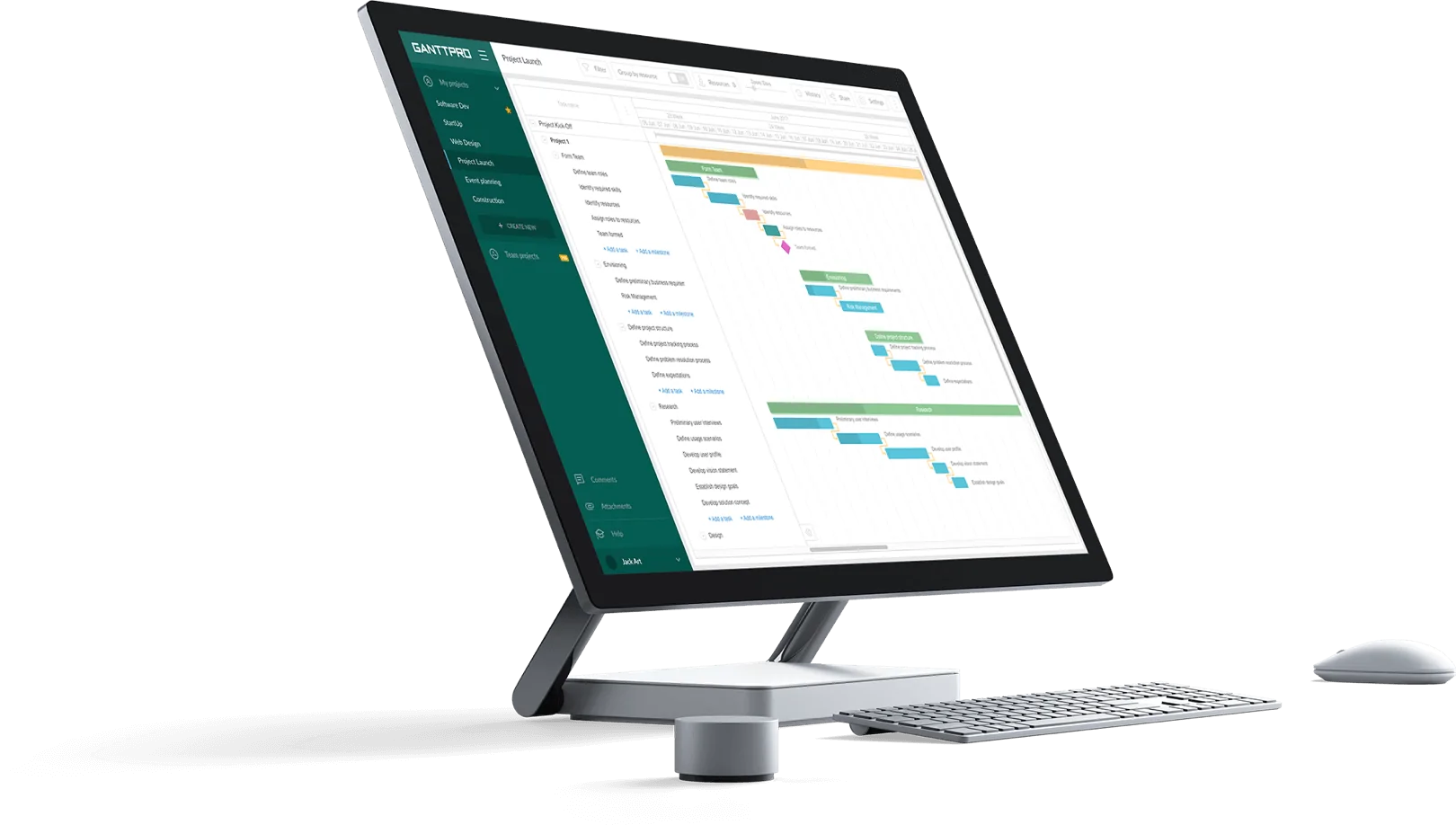
How to Organize Projects Visually with GanttPRO: Custom Colors


October 22, 2026 / Estimated reading time: 2 minutes

Colors in projects are often used not just for decoration. They help your team identify task categories, responsibilities, and priorities at a glance. In other words, they make project timelines easier to scan.
With GanttPRO, you’ve always been able to color-code tasks and custom fields using a ready-made palette.
But there are cases when this is not enough. For example, your team already follows its own color system, works with client brand guidelines, or is migrating from another tool. To put it simply, a fixed palette can be limiting.
In this release, we’re introducing custom colors for tasks, Labels and Color custom fields, and virtual resources. Choose the colors you need and get more control over how your projects look and how your team organizes information.
Choose the exact color you need
You can choose custom colors from a familiar color picker. There, we’ve added a new + icon which opens an advanced menu with:
- A hue slider.
- A color spectrum.
- A field for entering RGB or HEX values.
Working with custom colors is useful when you want to:
- Match your company’s or client’s brand colors.
- Keep a color system your team already uses.
- Distinguish more categories than a standard palette allows.
- Make different tasks and resources easier to identify on a timeline.
Let’s see where you can use custom colors.
Tasks
Using only standard colors can make task bars on your timeline look too similar. This can make a Gantt chart harder to scan.
Custom colors let each task stand out and match the colors people already associate with them.
Labels custom field
Teams with many labels (departments, clients, task types, etc.) can quickly run out of standard colors. Using repeated ones makes labels harder to tell apart at a glance.
Custom colors make labels easier to distinguish and help keep your projects organized.
Color custom field
In many cases, this field can represent information such as specific statuses, risk levels, approval stages, etc.
Exact shades let you mirror the scheme or internal standards your organization already uses.
Virtual resources
Virtual resources can represent equipment, rooms, contractors, and external vendors.
Custom colors help distinguish them from team members and from one another on the timeline.
Bulk change
Making changes in task colors one by one takes time and, unfortunately, leaves room for errors.
Apply a custom color to multiple tasks at once to save time and reduce repetitive work.
Make your projects easier to read with custom colors
Build clearer, more consistent project timelines with custom colors in GanttPRO. Match your team’s visual conventions, distinguish project elements at a glance, and update multiple tasks in one go.
Choose the exact color you need using the color spectrum or by entering an RGB or HEX value. Apply custom colors to tasks, Labels and Color custom fields, and virtual resources.
If you have any questions, contact us via live chat, and we’ll be happy to help.