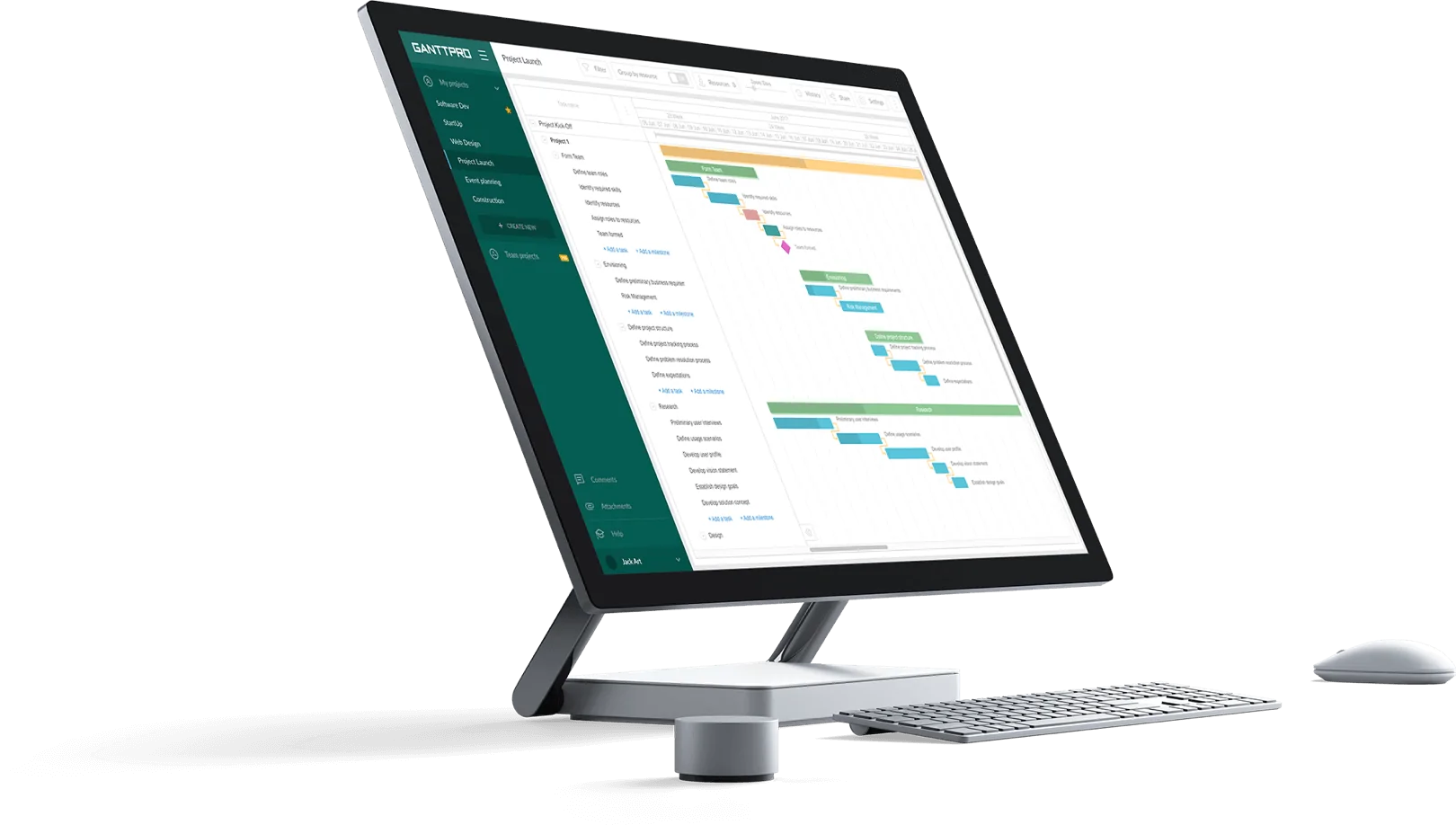
How to Present Your Projects with GanttPRO: Shared Private Link for Board View

Written by: Andrew Stepanov

Andrew Stepanov

Content marketing lead, senior editor

Andrew is a seasoned marketing professional with over 10 years of experience as a writer and editor. Since 2017, he has been a content lead and content marketing strategist for GanttPRO.

See full bio
Reviewed by: GanttPRO Team

GanttPRO Team

Product development

Best practices in project management, productivity, and software solutions. Inspired by the experience of every GanttPRO team member.

See full bio

May 4, 2026 / Estimated reading time: 2 minutes

GanttPRO release: shared private link for Board view

Sharing your project externally shouldn’t depend on a single view.

With GanttPRO, you’ve always been able to present your timeline via a Gantt chart.

But when your audience thinks in workflows or comes from a non-PM background, you may need a different perspective.

In this release, we’re introducing shared private links for Board view, so you can present your work in the format that fits your audience best, without extra setup.

When to share your Board

But first, let’s remember what a shared private link is.

This is a link that lets others view your project with only the data you choose to share.

It is useful when you want to:

  • Share a product roadmap with external stakeholders.
  • Walk clients through task progress during delivery.
  • Align internal and external teams on workflows.

This option is available for Account Owners, Account Admins, and for users on an Enterprise plan with the corresponding permissions.

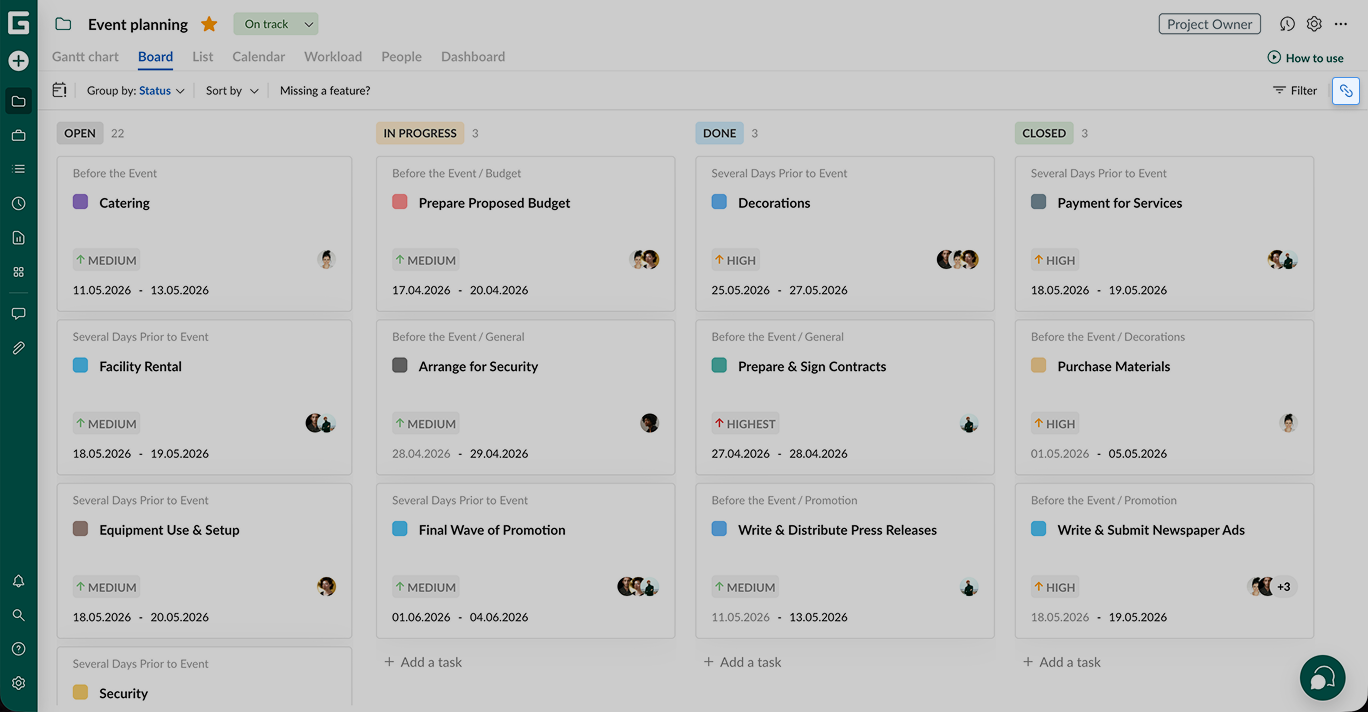
We’ve also improved the navigation. You can now find a direct link to this menu in the upper-right corner.
GanttPRO release: shared private link for Board view

What you can do with a shared Board

The same options as with a shared Gantt chart are available.

You may generate a link without any settings or apply some or all of them.

In the first case, a link leads to the current state of your project without any additional information.

But for more detailed and personalized data, we encourage you to apply settings.

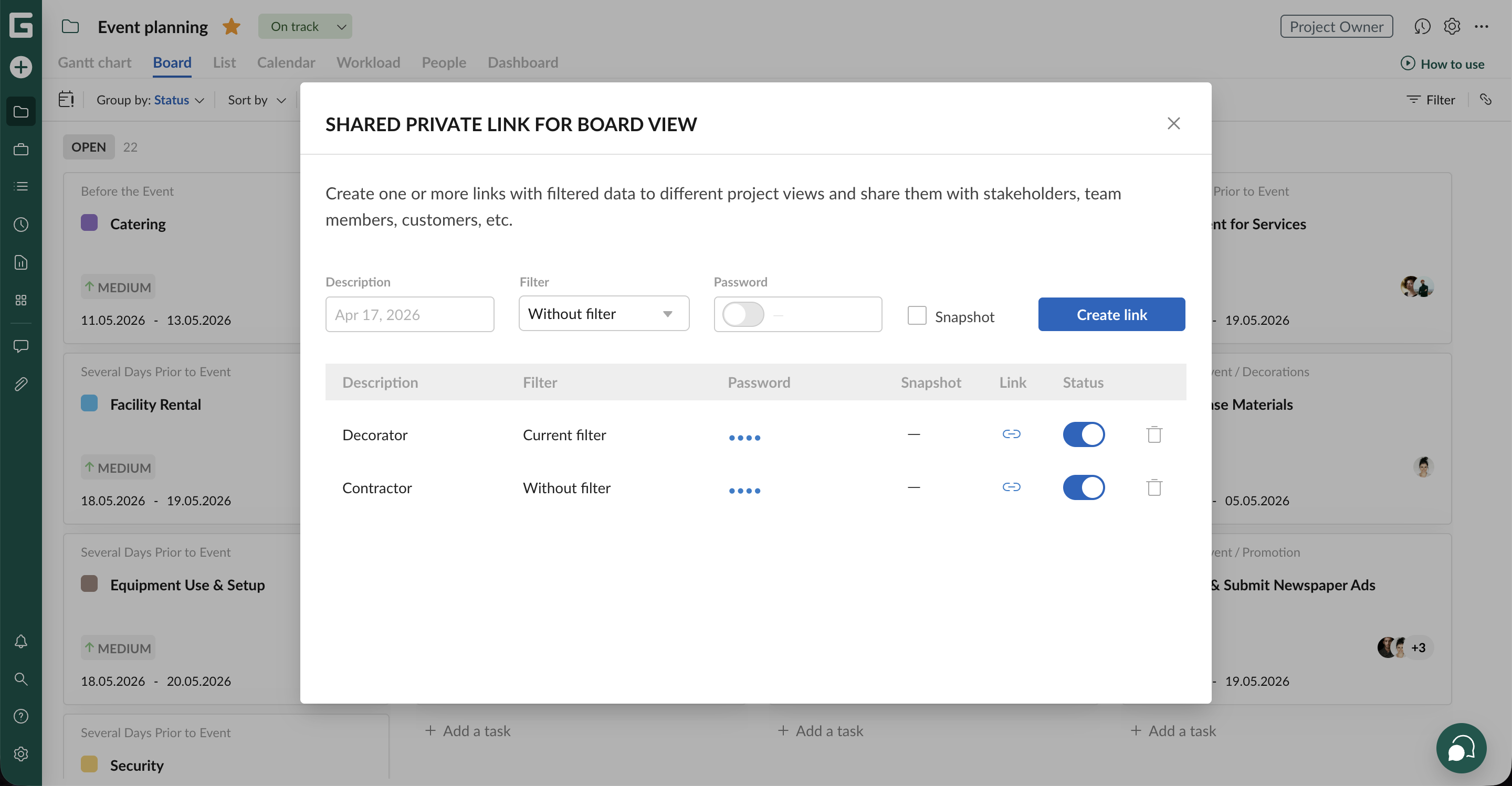
Let’s take a look at them.
GanttPRO release: shared private link for Board view
  • Description. Add a label to easily identify your link later. If left empty, it takes the current date as a name.
  • Filter. Show only the tasks or segments you want to share. Thus, you can choose what exactly you want to present: the whole Board or its selected parts.
  • Password. Restrict access for sensitive projects.
  • Snapshot. When unchecked (default), you share the current state of your project. This means third parties always see the latest version. When checked, you share its static picture taken at the moment of link creation.

You can manage all created links at any time:

  • Copy them.
  • Make them active or inactive by switching the Status toggle.
  • Delete them.
  • Set passwords.

Start sharing your Board view

Now in GanttPRO, you can present your projects as both a Gantt chart and a Board view.

Share a Gantt diagram if you need to show the big picture with dependencies, milestones, and other critical information.

Use Board view when presenting work as a workflow. It makes it easier for clients and stakeholders to understand progress at a glance.

If you have any questions, contact us via live chat, and we’ll be happy to help.

5 1 vote
Article Rating
Andrew Stepanov

Andrew Stepanov

Andrew is a seasoned marketing professional with over 10 years of experience as a writer and editor. Since 2017, he has been a content lead and content marketing strategist for GanttPRO.

GanttPRO Team

GanttPRO Team

Best practices in project management, productivity, and software solutions. Inspired by the experience of every GanttPRO team member.

Read also

From an Idea to a Plan in Minutes: Meet the AI Gantt Chart Maker
Andrew Stepanov/Estimated reading time: 3 minutes
How to Accurately Analyze Budget, Progress, and Time on Tasks with GanttPRO: Table Reports
Andrew Stepanov/Estimated reading time: 4 minutes
How to Delete Team Members from an Account and Keep Their Data: User Conversion
Andrew Stepanov/Estimated reading time: 1 minute
GanttPRO Wins Top Awards in Project Management and Other Related Fields
Paolo Kukhnavets/Estimated reading time: 5 minutes
How to Boost Productivity with GanttPRO: Filters for Google and Outlook Calendars Sync
Andrew Stepanov/Estimated reading time: 1 minute
How to Accurately Analyze Progress, Budget, and Time on Tasks with GanttPRO: Graphical Reports
Andrew Stepanov/Estimated reading time: 4 minutes
How to Manage Projects with GanttPRO: Updated Board View
Andrew Stepanov/Estimated reading time: 4 minutes
GanttPRO Project Management Affiliate Program: Join It and Get the Highest Comission Rate
Paolo Kukhnavets/Estimated reading time: 6 minutes
GanttPRO Wins Prestigious Awards in Project Management, Marketing Planning, Project Tracking, and More
Paolo Kukhnavets/Estimated reading time: 7 minutes
How to Precisely Track Time Spent on Tasks with GanttPRO: the Timer Widget in the Mobile App
Andrew Stepanov/Estimated reading time: 1 minute
How to Boost Productivity with GanttPRO: Integrations with Google and Outlook Calendars
Andrew Stepanov/Estimated reading time: 4 minutes
How to Work with Task and Project Budget with GanttPRO: Manual Budget Entry & Currency
Andrew Stepanov/Estimated reading time: 3 minutes
Subscribe
Notify of
guest
0 Comments
Oldest
Newest Most Voted
Inline Feedbacks
View all comments

Join 1M+ project managers!

Create Gantt charts in minutes with GanttPRO and reduce time spent on managing tasks by 40%

Try for free

No credit cards required. No obligation.

0
Would love your thoughts, please comment.x
()
x