


The success of any project depends on many factors, including a carefully developed work structure. When a plan involves dozens of interrelated tasks, teams need a clear understanding of a project as a whole and every detail within a specific activity.
GanttPRO users have a wide range of capabilities to manage even the most complex projects. Their planning process is based on understanding the relationships between work components and identifying key deliverables.
Dependencies help to see the logic and order in which tasks are completed. Milestones capture important achievements and ensure progress toward the end goal. These features can work together or separately to provide a clear flow and a smart visual structure.
Whether it’s a project in software development, marketing, construction, healthcare, or another field, a lack of logic and transparency may lead to downtime, duplication of tasks, and missed deadlines. Properly configured dependencies and milestones address these issues, transforming a project plan into an effective coordination system.
Let’s explore the specific benefits of dependencies and milestones as well as the ways to manage them in GanttPRO.
Contents:
Dependencies
Project managers and teams need a complete picture of their tasks, deadlines, and resources. Therefore, they often create a Gantt chart online or apply other visual tools.
They understand that clearly defined connections between tasks ensure a smooth and efficient workflow.
Displaying dependencies on a project timeline demonstrates the sequence of all activities. It reflects the natural order of tasks and makes explicit what might otherwise simply remain in the minds of project participants as an idea.
Task dependencies transform planning into a clear system where the sequence of decisions made is visible.
Here are some more benefits they provide:
- Change control. If one task is changed, dependencies display information about which other tasks are automatically rescheduled, which employees are experiencing difficulties, and how much the final deadline for the entire project may change.
- Block prevention. For example, a project team can see in advance which tasks cannot be started until others are completed. It eliminates downtime and conflicts.
- Resource optimization. Dependencies help assign responsible individuals to parallel, independent tasks instead of waiting in line.
- Risk management. Dependencies show where a delay in one task can lead to other delays. It allows you to prepare a plan B in advance.
- Critical path identification. Logical relationships show which tasks directly impact the final deadline and help to find a critical path.
- Transparency of actions. Dependencies ensure that all team members understand who they depend on and who depends on them. It improves overall project coordination.
These logical connections between tasks can vary depending on the situation.
There are four types of dependencies:
- Finish-to-Start (FS) — when the completion of one task defines the start of the next.
- Finish-to-Finish (FF) — when the finalization of one task is directly tied to the completion of another.
- Start-to-Start (SS) — when a task can only commence once a preceding task has begun.
- Start-to-Finish (SF) — when a task cannot be finished until another one has at least started.
Many PM programs focus on displaying a Finish-to-Start dependency as the primary option. However, projects in construction, manufacturing, and other areas with complex resource planning often require visualization of other types.
GanttPRO is a powerful online tool that gives teams complete freedom to work with various dependencies.
This capability is highly appreciated by George Rossle, a production manager at A+ Construction Pro. Here are his thoughts:


With GanttPRO, I do not lose control of tasks and their dates. Once I create a dependency, I am sure we won’t mess up or lose something.
It’s time to explore all four types of dependencies using real-world examples. For your practical convenience, we’ll show you how quickly and easily you can plan and manage them in GanttPRO.
Let’s turn to the field of game development.
The goal of a new project is to design and implement a new character for a mobile game.
The plan consists of various tasks and subtasks, from concept creation to technical adaptation of the final result. At first glance, this work may seem simple. However, in reality, it requires significant effort and time from various specialists.

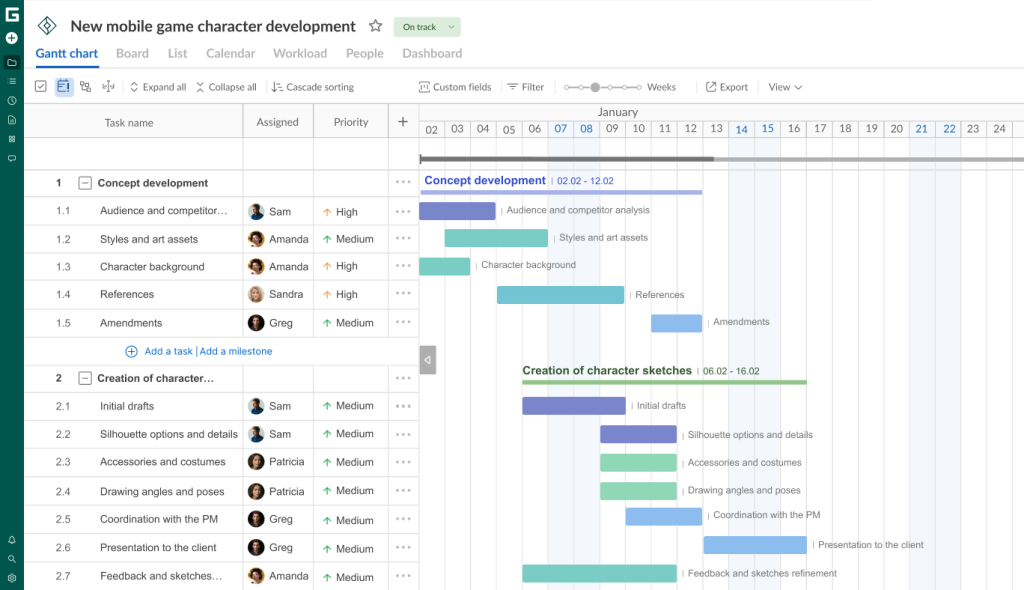
Let’s delve deeper into the possible dependencies between tasks and examples of them in such a project.
Finish-to-Start dependency
There are many different scenarios when teams use this type of dependency. It is considered the most common.
You may find it in complex multi-level campaigns or plain three-day projects.
What benefits does this dependency bring to project teams?
The FS type actually indicates that a successor task cannot begin until its predecessor is fully completed. It reflects a natural logical sequence of actions, where the outcome of one activity becomes a prerequisite for the start of the next. Usually, this type implies a rigid, linear structure for task execution.
It’s time to move on to our project of developing a new character for a mobile game to explore possible examples.
All the cases below will be based on a task called “Creation of character sketches” and its subtasks.
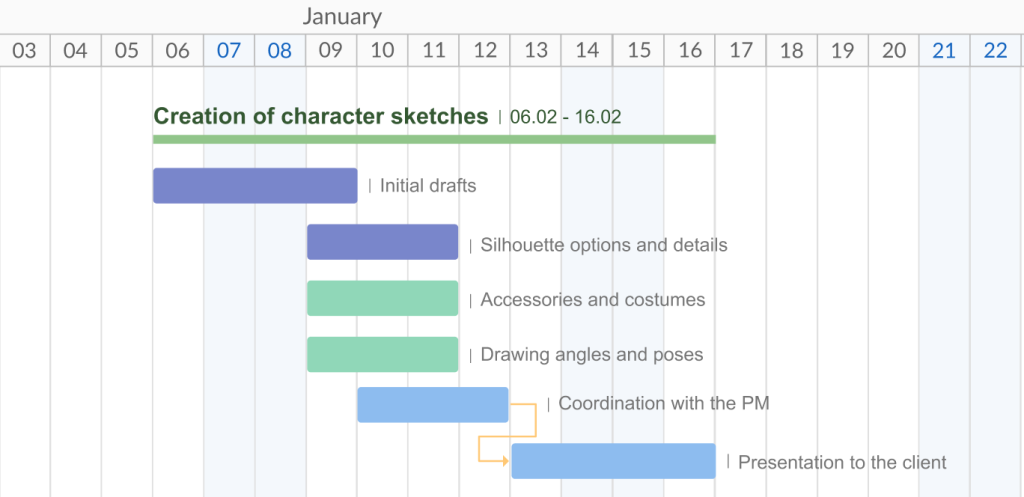
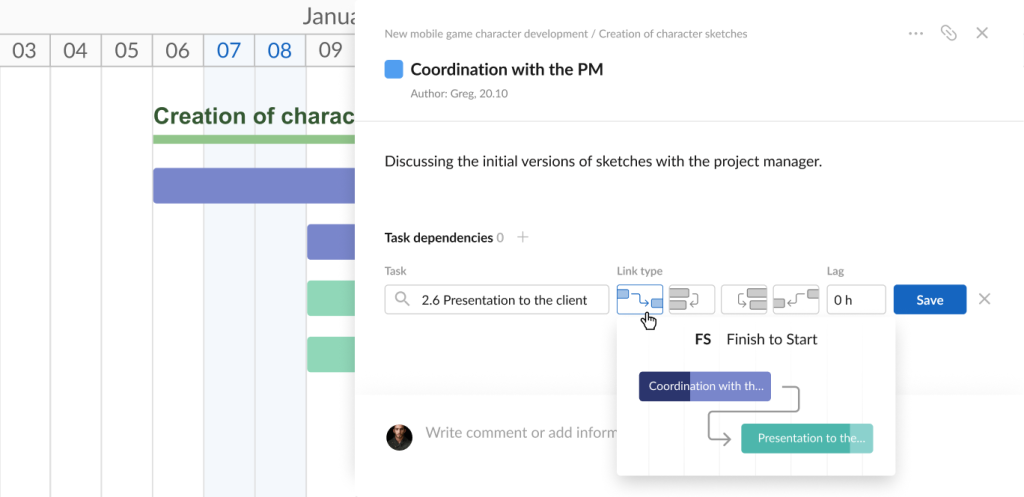
Example: project designers can begin demonstrating character sketches to the client (2.6) only after the project manager has approved these sketches and their final presentation. (2.5)
How to create a Finish-to-Start dependency in GanttPRO
What sets GanttPRO apart from other similar programs is the ability to add dependencies to a timeline in several ways. If one option doesn’t suit you for any reason, you can always try another.
The quick drag and drop feature helps to create a Finish-to-Start dependency in seconds.
You just need to drag the small circle from the end of one task and drop it at the beginning of another.
GanttPRO will seamlessly connect them without losing or disrupting anything nearby.

For the second method, you’ll need to open task settings. It’s possible to do it in several ways:
- By hovering over the settings icon to the right of a task name in a project grid and clicking on it.
- By clicking the three-dot icon to the right of a task name and then selecting Task Settings.
- By double-clicking a specific task bar on a timeline.
In these settings, you can see the Add dependency button.

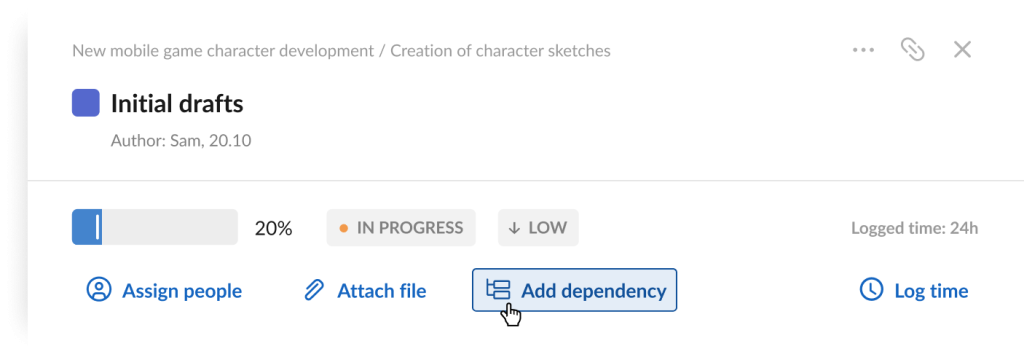
Clicking on it will open the corresponding menu where you can select the task you want to link it to from the dropdown and set the FS dependency option.
All that remains is to click the Save button.
That’s it.
Finish-to-Finish dependency
Another way to link activities within a project is to use a Finish-to-Finish dependency. This type specifies that the second task cannot be completed until the first is done, even if both tasks are running in parallel most of the time.
It’s important to note that this dependency focuses on the work completion, not start. Unlike the first option, tasks can proceed concurrently, but their final stages are synchronized.
What is the practical benefit of adding this type?
Such a relationship is often used when there’s a need to coordinate the completion of several areas of work, quality control, or documentation that is finalized along with the process itself.
Below is a real-life case.
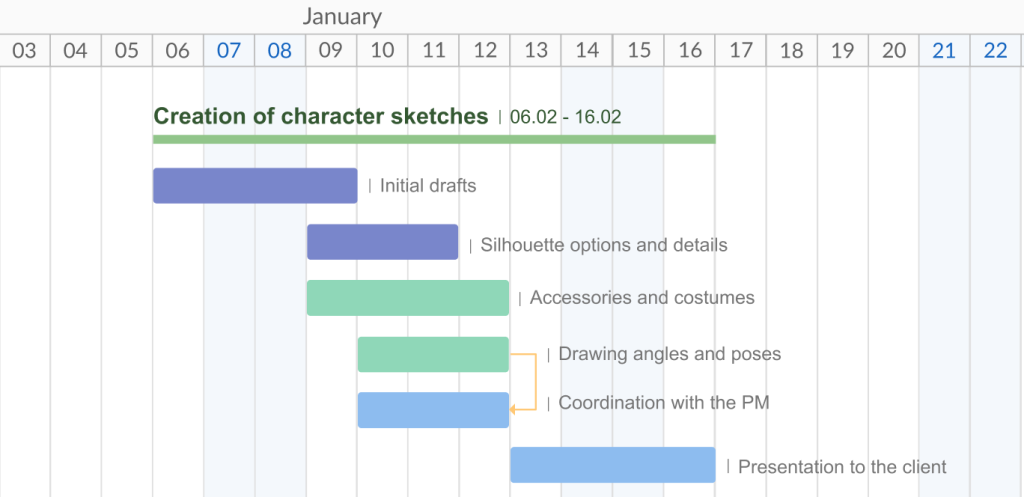
Example: the project manager cannot finalize the internal review of ready sketches (2.5) until all character angles and poses (2.4) are completed. It typically occurs because the PM must evaluate the entire set of materials before final approval.
How to create a Finish-to-Finish dependency in GanttPRO
As with the first case described above, GanttPRO allows users to set up a Finish-to-Finish dependency in two ways.
Fast visualization will be achieved by dragging and dropping.
Just click the circle next to a task and drag the arrow connecting its end to the end of another task.
Such simplicity and accessibility of actions in this software are highly appreciated by users.
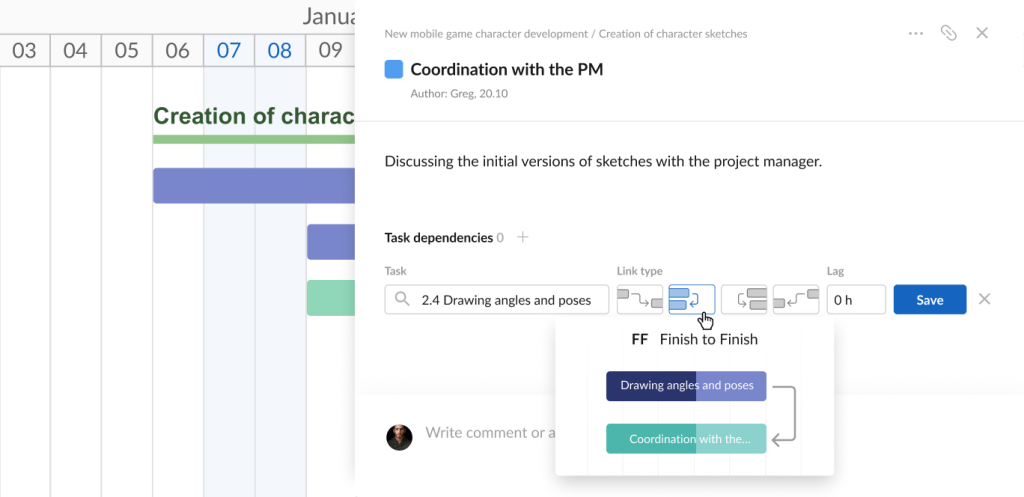
If you want to use settings to add a Finish-to-Finish dependency, you’ll need one of the familiar ways to open your task.
After clicking Add dependency, find the corresponding menu and select the task you want to visualize the relationship with from the dropdown. Select the Finish-to-Finish option. Save it.
Start-to-Start dependency
Now, let’s explore the essence of a Start-to-Start dependency.
It is useful when you want to highlight the relationship between tasks, where the start of one activity determines the start of another.
In this case, both tasks can be executed simultaneously. It fundamentally distinguishes this dependency from the more classic FS type.
You can often see this relationship on timelines in construction projects, where many processes can run in parallel after a certain start point. It is also widely used in production with an assembly line principle, as well as in IT development to organize simultaneous workflows between different teams.
Overall, this dependency is especially effective in situations where it’s essential to reduce the entire project duration by parallelizing work and optimizing resource utilization.
This is clearly illustrated by the following example.
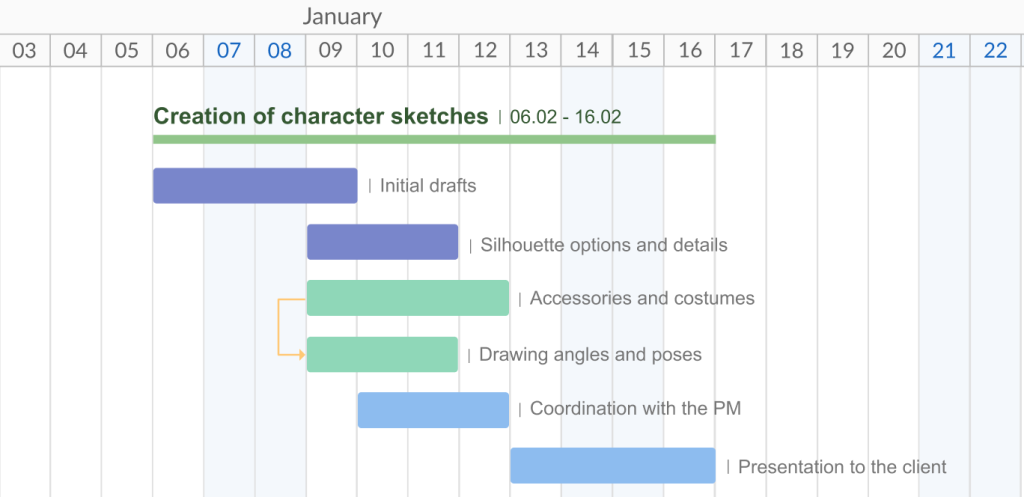
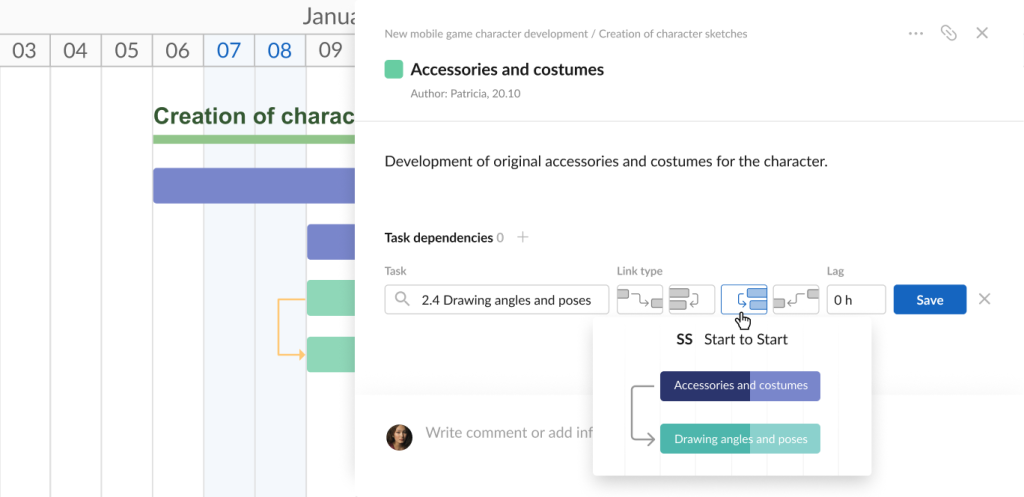
Example: preparing angles and poses (2.4) can begin immediately after the design of accessories and costumes (2.3) begins. This is acceptable because designers can simultaneously experiment with poses and existing costume elements.
How to create a Start-to-Start dependency in GanttPRO
It’s easy to set a Start-to-Start dependency on a GanttPRO timeline by dragging the start of one selected task to the start of another.
If you prefer an alternative method, open your task settings, click Add dependency and go to the corresponding menu.
Use the dropdown to find the task you are interested in and choose the Start-to-Start relation option.
Click the Save button.
Start-to-Finish dependency
Finally, project tasks can be logically connected with the assistance of a Start-to-Finish dependency. It demonstrates that a predecessor cannot be completed until a successor begins.
This is a rather specific and rarely used option. However, there are projects where it’s essential to change shifts or hand off responsibilities on time. Or it can be a case of transitioning from an old system to a new one.
Many think that SF dependencies complicate planning, so they avoid using them.
However, we have a clear case to illustrate this option.
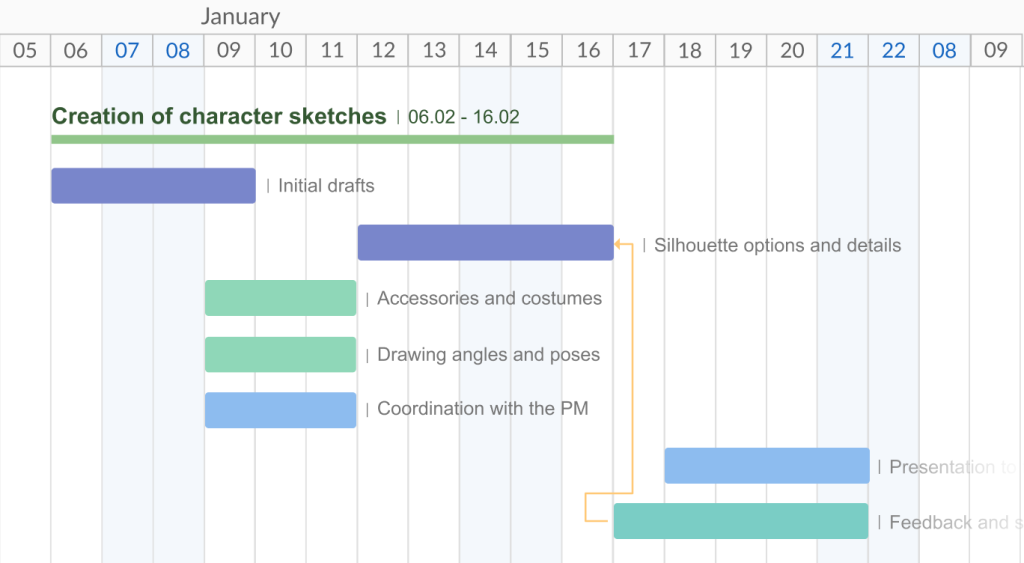
Example: detailing the selected silhouettes (2.2) can only be completed after receiving feedback on the sketches (2.7). This is important because even minor comments from the client can require fundamental changes.
How to create a Start-to-Finish dependency in GanttPRO
Although this type of dependency is quite rare in a typical project, GanttPRO can visualize it without any problems.
Here you can again choose the quick and easy drag and drop method.
Create dependencies manually by connecting the start of one task to the end of another.

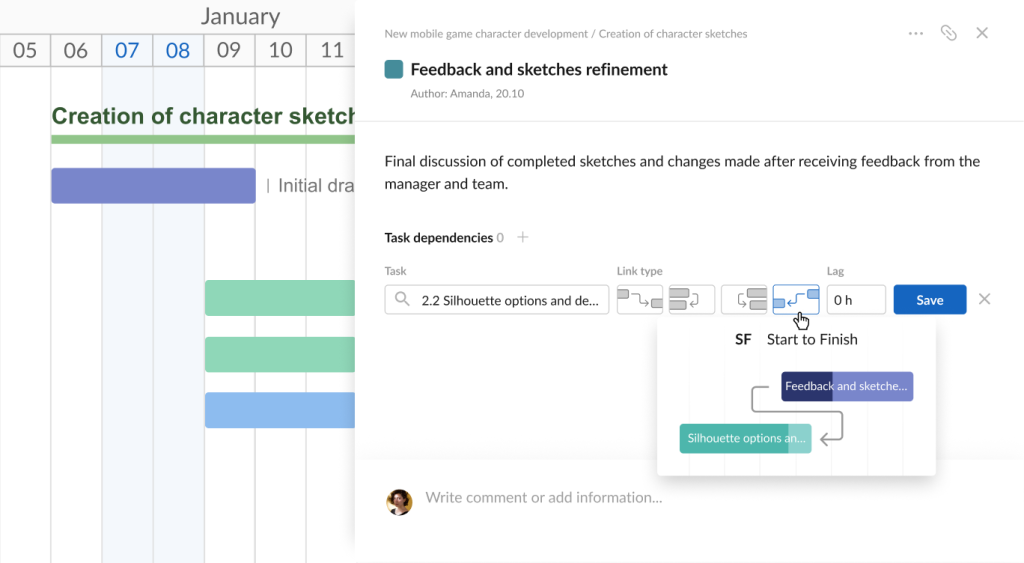
It is also worth mentioning the second way to add a dependency in GanttPRO, which can also be selected for the SF type.
Open your task settings and click Add dependency. In the corresponding menu, find the task with which you want to create a link. Click the Start-to-Finish dependency option and save it.
Now it is clear how important various dependencies are. And it’s invaluable that GanttPRO allows users to work with them at a highly professional level.
However, that’s not all as the software offers another related feature that looks very useful.
Pro bonus: lags and leads
Project teams can create realistic workflows even more accurately by adding lags and leads to task dependencies. Ultimately, this influences better resource utilization and more reliable project delivery dates.
This feature in GanttPRO looks like a truly valuable bonus, since very few programs allow for working with lags and leads.
A project may contain a task or subtask that doesn’t begin immediately after the preceding task/subtask completes. This is lag time.
It’s also possible for the following task to begin while the preceding one is still in progress. This is lead time.
Even with autoscheduling enabled, GanttPRO allows you to add gaps between tasks or create overlaps between them in seconds. It means that if you move a group of tasks on a timeline, the dependencies are preserved as it was configured.
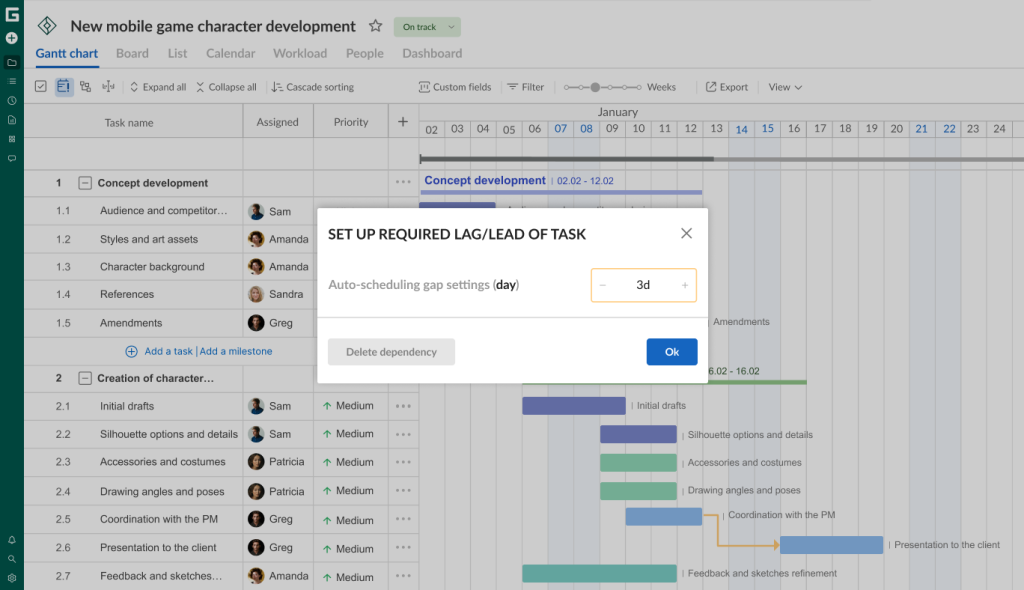
You can set lead or lag time for your task by clicking on a task dependency.
You’ll see the Set Up Required Lag/Lead of Task settings, which you can use to increase or decrease the required values:
- Set lead time with a negative value (-).
- Set lag time by adding values (+) to create a gap between tasks.
Lag and lead time in tasks are calculated based on the scheduling units set for your project (hours, days, weeks, months).
This structuring of project task relationships will undoubtedly have a positive impact on your workflow.
However, you can achieve even more by adding key milestones to a timeline.
Get the detailed information right now.
Milestones
Capturing significant interim results gives teams an understanding that everything goes according to their plans.
A milestone in project management is another significant element, which helps make schedules more effective and transparent.
This is an important checkpoint in a project, after which you can record progress or summarize medium results. It helps managers make informed decisions. With its help, they prevent excessive delving into details and nuances.
Here are some more practical benefits of milestones:
- Help to prioritize tasks. Milestones, like dependencies, visualize the connections between project parts and the relationships between stages. If a team clearly defines these key checkpoints, everyone will understand what’s coming next without further ado.
- Allow for tracking deadlines. Turning key deliverables and important events into project milestones helps any team member who wants to get a general overview of the work quickly see what’s happening and when.
- Assist in identifying delays and bottlenecks. Milestones force people to periodically pause and assess a project’s progress. It helps prevent mistakes and monitor progress.
- Motivate teams to move toward their goals. A successfully completed milestone demonstrates the results people have achieved. The feeling that things are getting done and issues are being resolved is important for maintaining the team’s morale.
Your project may have any number of milestones, depending on the scope of work.
Most often, such checkpoints are identified during planning and setting project goals. However, regular tasks can be converted into milestones as the work progresses.
What can be a milestone?
Here are the most common cases:
- Important task. It may mark the completion of critical work that impacts the entire project. For example, it can be the result of data migration.
- Critical deadline. This is a fixed date that cannot be changed. For instance, the end of a reporting period.
- Major event. This milestone highlights a significant event within a project that is not a task. A public launch or a meeting with investors are good examples.
- Decision point. It refers to a critical decision that determines the future direction of a project. It can be the selection of a technology stack or a vendor.
- The fact of receiving/transferring. It can be the moment of receiving something from outside or transferring a result. For example, an important approval or delivery.
- Demonstration or presentation. It refers to presenting the results to clients or investors. It can be a public announcement of a product.
- Contractual obligation. Such a milestone may reflect the dates specified in contracts, failure to comply with which leads to fines or legal consequences.
There may also be other cases, depending on a specific project.
One of the best ways to plan and track core project checkpoints is to visualize them on a Gantt diagram. This visual tool allows for monitoring processes, setting deadlines, and defining priorities wisely.
In GanttPRO, creating a milestone is a simple process that doesn’t take much time.
Here’s what Fernando Guillen, one of GanttPRO users, thinks about this capability:
GanttPRO is very intuitive and functional. It has allowed me to map out my tasks, set goals and milestones very easily and concretely regarding my work, tasks, and projects. This is a tool that fits my lifestyle.
Let’s take a closer look at this feature.
How to add a milestone in GanttPRO
Make sure that by the time you add milestones, your project in GanttPRO already has defined tasks and subtasks, as well as all necessary dates and deadlines. It will help you group activities according to different stages of work.
With a clear structure, you can define and designate milestones.
For your convenience, GanttPRO offers different ways to do it.
First of all, you can click one of the blue buttons, Add a milestone, at the bottom of the task list.
You may use such buttons for different hierarchical levels: it’s possible to create a milestone at the same WBS level as a subtask or at the level of a summary task.

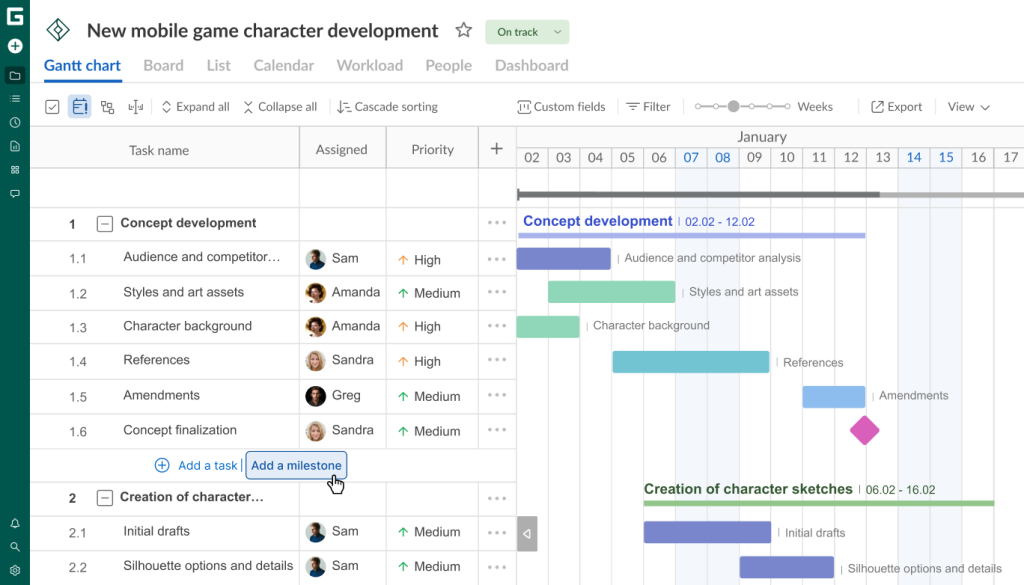
Alternatively, you can click on the three-dots button to the right of a task.
Select Add a milestone from the menu that appears. It will be at the same WBS level as the chosen task.
Besides, it’s easy to add a milestone directly from a timeline.
To do this, right-click on a specific task bar and choose Add a milestone. It will allow you to create a significant checkpoint at the same level.
In addition, GanttPRO provides another method based on converting a regular task/subtask into a key delivery.
Simply click the three dots to the right of the desired task’s name. Then select Convert to milestone.
You can also find the same option by right-clicking the corresponding task bar on your diagram.

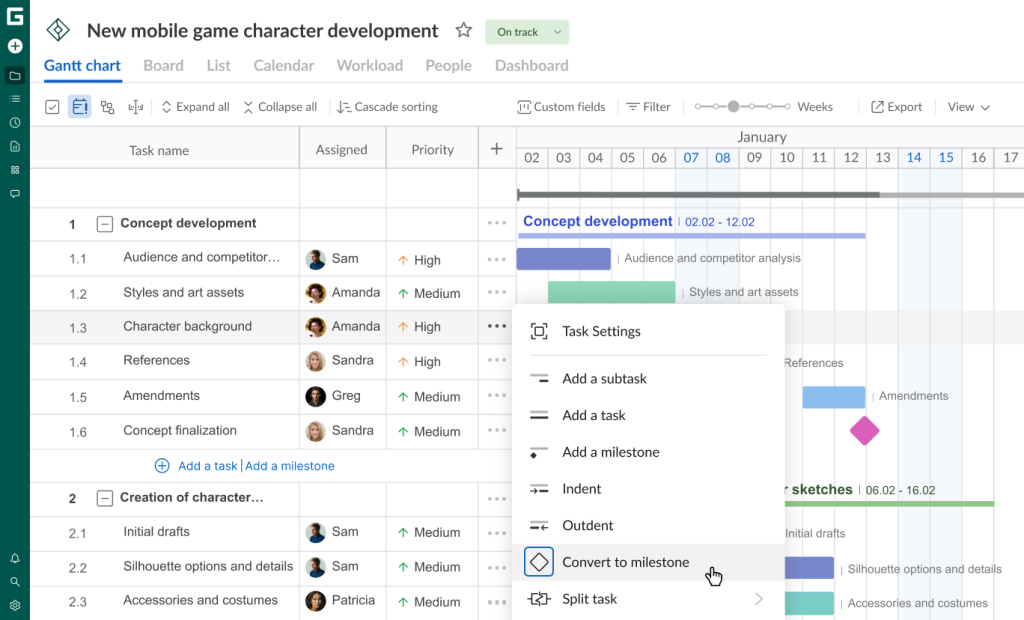
Don’t forget to name your milestones if needed. You can also drag and drop them, change their location, and set dependencies between them.
As a result, after adding dependencies and milestones, the project timeline looks clearly structured and understandable for everyone involved.

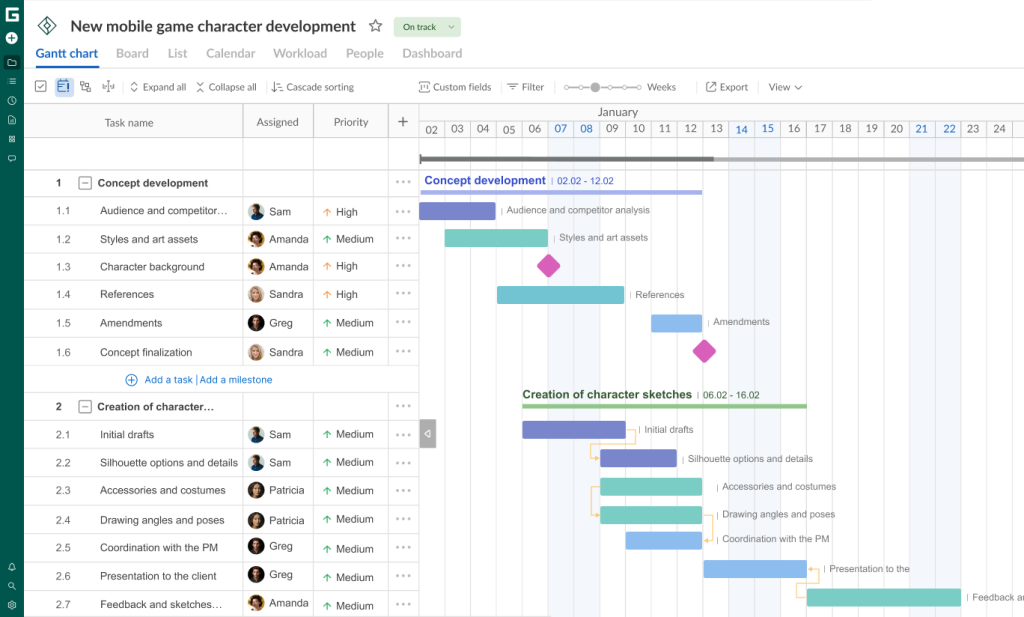
Now you know what dependencies and milestones in projects are and how to manage them efficiently in GanttPRO. Without doubt, these features will help you maintain realistic schedules and deliver great results.


Advanced project planning and task management
Visualize plans and coordinate tasks, dependencies, and milestones.
Sign up for freeEnsure project consistency and predictability with reliable dependencies and milestones
Projects without a clear structure and well-visualized plans have little chance of success.
However, if you care about creating logical dependencies between tasks and adding milestones, you can easily organize your workflow and prepare a reliable project schedule efficiently.
These important elements make your timeline more transparent and clear. With their help, you can coordinate project participants, plan realistic deadlines, track progress, and provide stakeholders with a high-quality project vision.
GanttPRO enables the visualization of dependencies and milestones without special skills or effort. Therefore, this functionality is popular among both newcomers and experienced project teams.
Use these powerful capabilities and manage your projects effectively. It’ll help you make planning a guarantee of business success.